


Terminals#
JupyterLab terminals provide full support for system shells (bash, tcsh, etc.) on Mac/Linux and PowerShell on Windows. You can run anything in your system shell with a terminal, including programs such as vim or emacs. The terminals run on the system where the Jupyter server is running, with the privileges of your user. Thus, if JupyterLab is installed on your local machine, the JupyterLab terminals will run there.
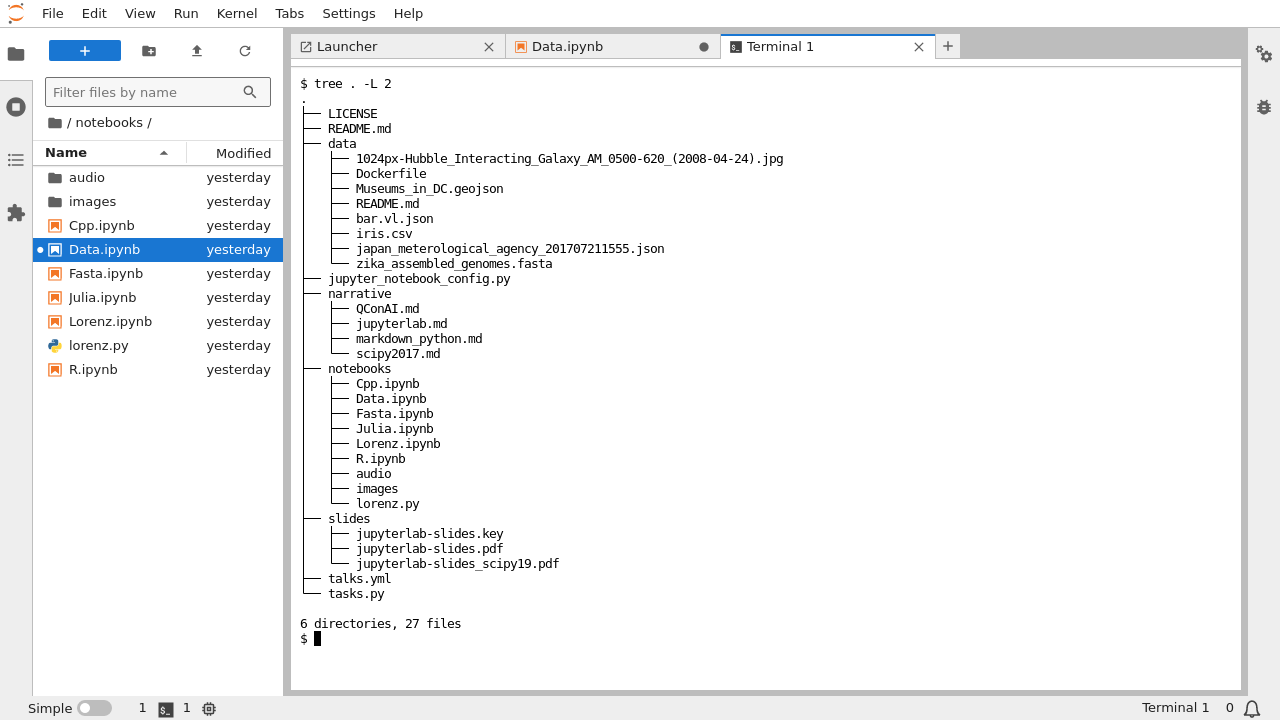
To open a new terminal, click the + button in the file browser and
select the terminal in the new Launcher tab:
Closing a terminal tab will leave it running on the server, but you can re-open it using the Running tab in the left sidebar:
Copy/Paste#
For macOS users, Cmd+C and Cmd+V work as usual.
For Windows users using PowerShell, Ctrl+Insert and Shift+Insert work as usual.
To use the native browser Copy/Paste menu, hold Shift and right click to bring up the
context menu (note: this may not work in all browsers).
For non-macOS users, JupyterLab will interpret Ctrl+C as a copy if there is text selected.
In addition, Ctrl+V will be interpreted as a paste command unless the pasteWithCtrlV
setting is disabled. One may want to disable pasteWithCtrlV if the shortcut is needed
for something else such as the vi editor.
For anyone using a *nix shell, the default Ctrl+Shift+C conflicts with the default
shortcut for toggling the command palette (apputils:activate-command-palette).
If desired, that shortcut can be changed by editing the keyboard shortcuts in settings.
Using Ctrl+Shift+V for paste works as usual.
Links#
Web addresses in the terminal output are detected automatically, as are
hyperlinks emitted by programs using the OSC 8 escape sequence. Hovering
over a link underlines it, and clicking it opens the target in a new
browser tab (escape-sequence hyperlinks first show a confirmation dialog,
since their target can differ from the displayed text). For safety, only
http and https links are detected: a hyperlink emitted with any other
scheme (such as javascript:) is ignored. Right-clicking a link brings
up the context menu with a “Copy Link Address” entry that copies the link
target to the clipboard.